How I code from the gym — Part 2: Any AI tool, one command
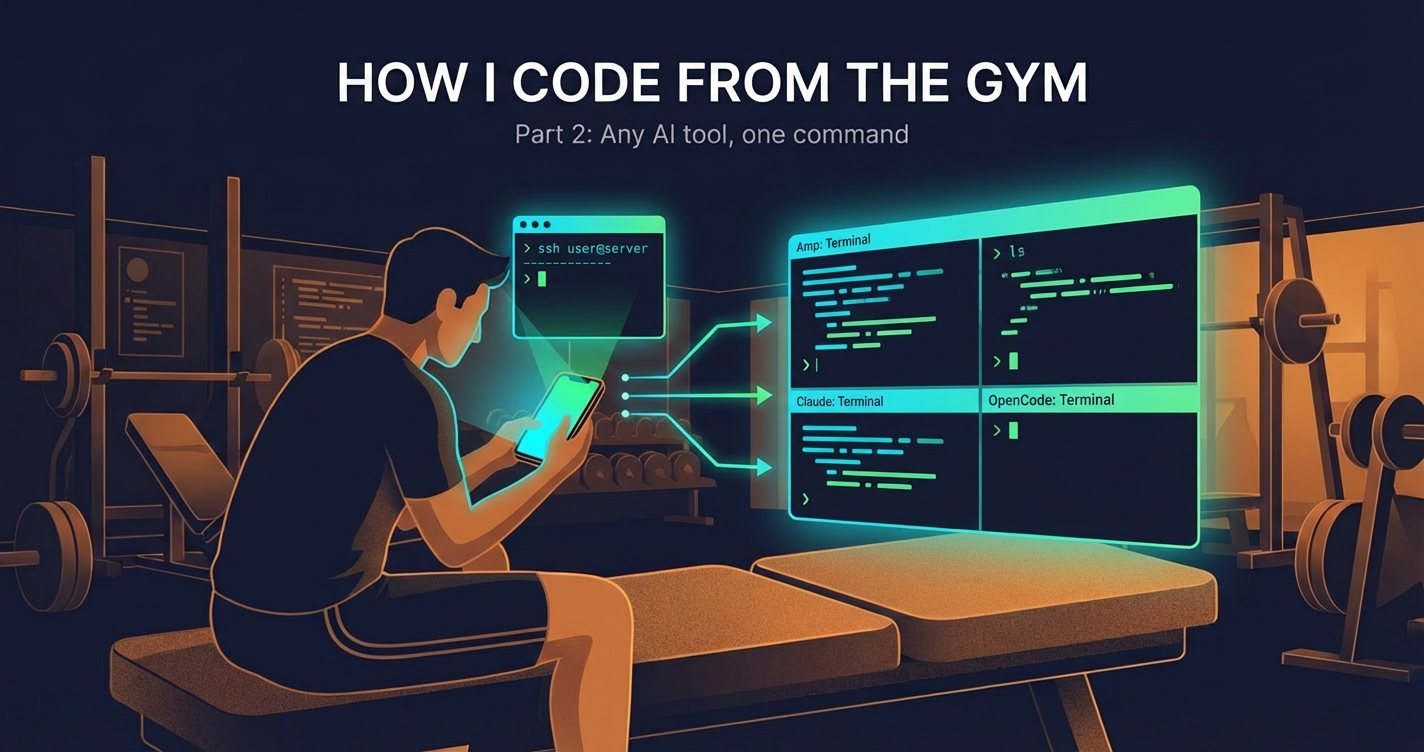
Extending my phone-based coding workflow beyond OpenCode Web to support Amp, Claude Code, Codex, and any terminal AI tool using SSH, tmux, and a small session manager called vaibhav.
- 1. How I code from the gym
- 2. How I code from the gym — Part 2: Any AI tool, one command
- 3. How my agents code when I am at the gym
- 4. Ralph loops for SDK migrations: a case study
In Part 1, I wrote about running OpenCode Web on my Ubuntu desktop and using it from my phone over Tailscale. That setup works great, and I still use it. But it has one limitation I called out at the end of that post:
One limitation of this approach is that I cannot use other harnesses like Claude Code, Codex, Amp etc and I always like to keep switching them to see how they all perform on my tasks so that I can be up-to-date on how the tools are evolving.
This is the “part 2” I promised. The core idea: instead of routing everything through a web UI, use SSH + tmux to run any terminal-based AI coding tool on my desktop and control it from Termux on my phone.
The setup
The architecture is simple:
Android (Termux) → SSH over Tailscale → Ubuntu Desktop → tmux sessions → AI toolsOn the desktop, an SSH server runs and tmux is always available. On the phone, Termux has an SSH client configured to connect via Tailscale. Each project gets its own tmux session, and each AI tool gets its own window inside that session.
The key difference from Part 1 is that we are not only limited to OpenCode. Any tool that runs in a terminal — Amp, Claude Code, Codex CLI, OpenCode — works out of the box. The phone is just an SSH client displaying a tmux session.
Why tmux makes this work
tmux is the missing piece that makes this feel smooth on mobile:
Sessions persist. I can close Termux, lock my phone, switch to another app, or lose connectivity entirely. When I reconnect, everything is exactly where I left it. The AI tool kept running, output is still there, and I pick up mid-conversation.
Multiple tools per project. I often want to compare how different tools handle the same task. With tmux windows, I can have Amp in one window and Claude Code in another, both in the same project directory. Alt+n to flip between them.
Multiple projects. Each project is a separate tmux session. Alt+s brings up the session picker so I can jump between projects without disconnecting.
Touch-friendly. Mouse mode is on, so I can scroll output and switch panes by tapping on my phone screen. The status bar at the top shows which project and tool I am in.
The general approach
You do not need any special tooling to make this work. The ingredients are:
- Ubuntu desktop with SSH server running and your AI tools installed
- Tailscale on both the desktop and phone for private networking
- Termux on your Android phone with an SSH key configured
- tmux on the desktop
Once SSH keys are set up, the workflow is:
# From Termux on your phone
ssh desktop
tmux new-session -s myproject -c ~/projects/myproject
amp  # or claude, codex, opencode — whatever you want
To reconnect later:
ssh desktop
tmux attach -t myproject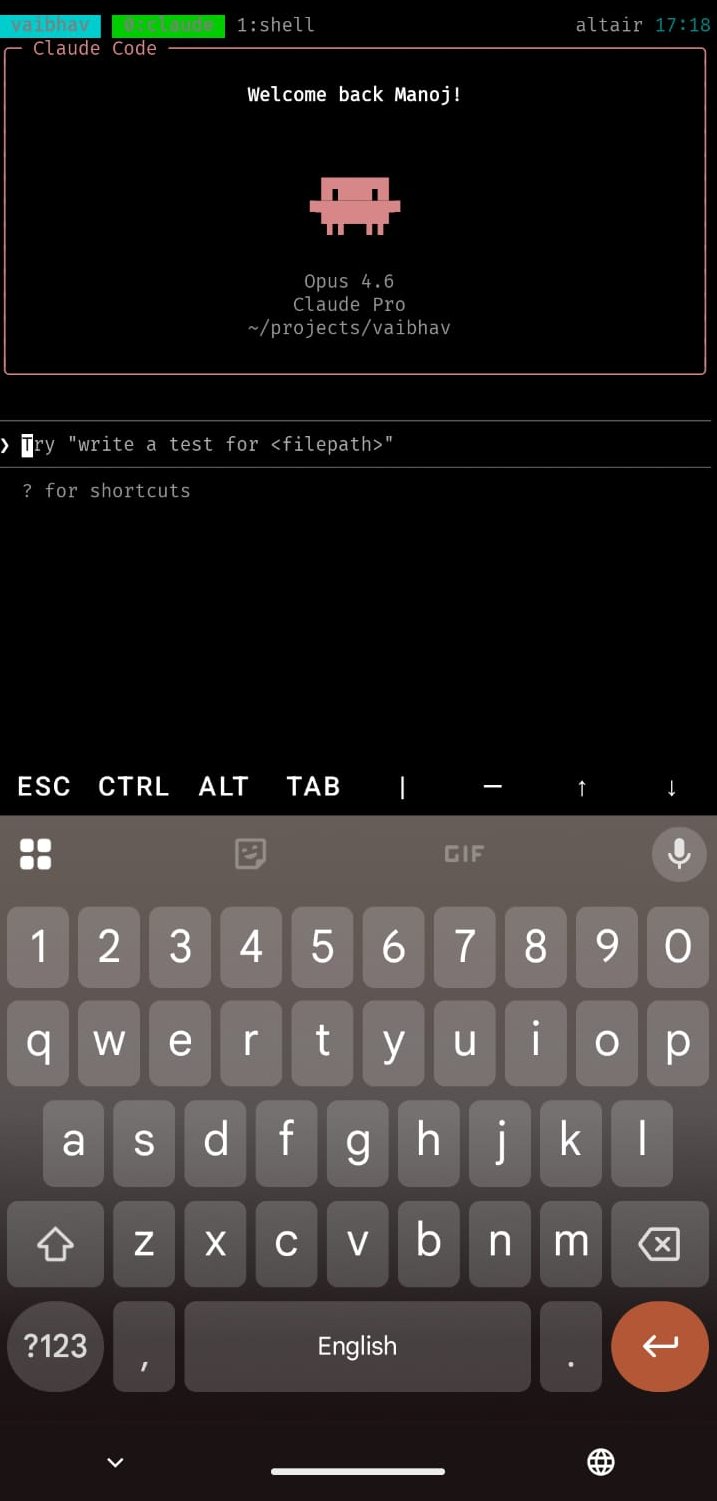
That is the whole idea. Everything below is just making it more convenient.
Making it smoother with vaibhav
I built a small tool called vaibhav to remove the friction from this workflow. It is a single bash script that manages tmux sessions per project and handles the SSH connection transparently.
From my phone, all I type is:
vaibhav heimdall ampThat one command:
- SSHes into my desktop (if I am on the phone)
- Creates or attaches to a tmux session named
heimdall - Opens Amp in a window inside that session, cd’d to the project directory
If the session already exists and Amp is already running, it just attaches. If I want to add Claude Code to the same project:
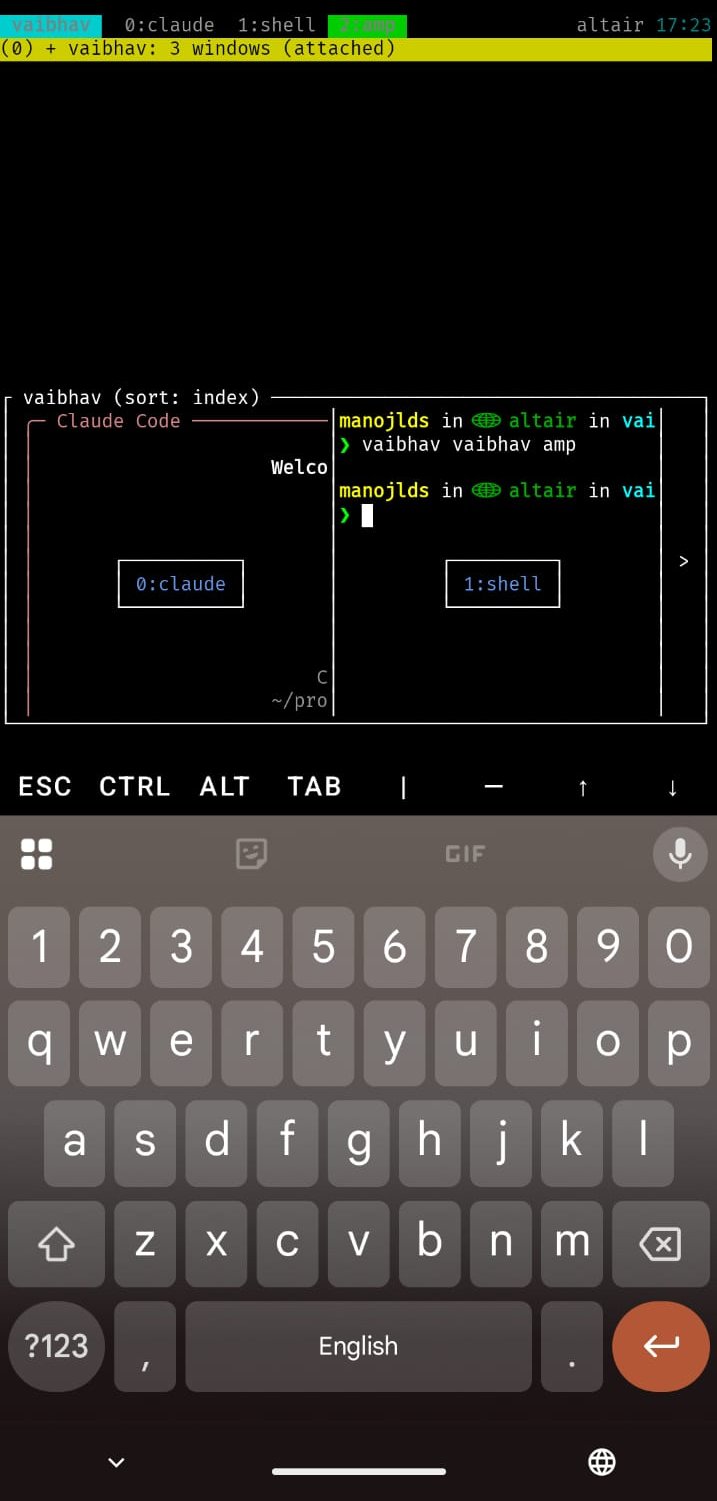
vaibhav heimdall claudeThis creates a new tmux window in the same session. I now have Amp and Claude Code side by side for the same project, and I can flip between them with Alt+n / Alt+p.
How it works
vaibhav has two modes. On the desktop, it manages tmux sessions directly. On the phone, it detects that it is not on the desktop (by comparing hostnames) and transparently wraps everything in an SSH call:
# On the phone, this:
vaibhav heimdall amp

# Becomes:
ssh -t desktop "$SHELL -lic '$HOME/bin/vaibhav heimdall amp'"
The remote vaibhav instance then handles the tmux session creation and tool launch. From the user’s perspective, the same command works everywhere.
Setup
On the desktop:
git clone https://github.com/manojlds/vaibhav.git ~/projects/vaibhav
cd ~/projects/vaibhav
./setup-desktop.sh
This installs tmux, links a mobile-optimized tmux config, ensures SSH is running, and runs vaibhav init to configure your projects directory.
On the phone (Termux):
curl -fsSL https://raw.githubusercontent.com/manojlds/vaibhav/main/setup-termux.sh -o setup-termux.sh
bash setup-termux.sh
This installs OpenSSH, generates and copies an SSH key to your desktop, downloads the vaibhav script, and configures Termux with an extra keyboard row for coding (ESC, CTRL, ALT, TAB, pipe, dash).
Project management
vaibhav maintains a simple project registry so it knows which directories map to which names:
vaibhav scan              # Auto-register all projects under ~/projects
vaibhav add myapp ~/myapp # Register a specific project
vaibhav list              # See all projects and active sessions
vaibhav list shows which sessions are active and what tools are running in each:
  ● heimdall → /home/user/projects/heimdall
    active [amp,claude]

  ● drs → /home/user/projects/drs
    active [shell]

    vaibhav → /home/user/projects/vaibhav
    inactive
The tmux config
vaibhav ships with a tmux configuration tuned for mobile use:
- Mouse mode on — scroll and tap to select panes on a phone screen
- Status bar at the top — shows the project name and tool, easy to see at a glance
- Alt-key shortcuts —
Alt+sfor session picker,Alt+1..5for window switching,Alt+n/pfor next/previous. These all work well in Termux without needing the prefix key combo - Detach confirmation — prevents accidental detach from a stray key combo on mobile
What this gives me over Part 1
The OpenCode Web setup from Part 1 is still great and is my primary way of working both on desktop (yes, I don’t use the TUI much) and on mobile. It has a polished UI, works in a browser, and the server/client architecture is elegant.
But the tmux approach solves the limitation I mentioned: I am not locked into one tool. In a given week I might use Amp for a side project, Claude Code for another, and Codex to try something new. Having all of them available from the same workflow, with the same keybindings and session persistence, means I can keep up with how these tools are evolving without changing my setup.
Closing thoughts
Part 1 was about the Switch moment for coding — being able to code in small pockets of time from anywhere. That idea has not changed. What changed is that the Switch moment now works with any AI coding tool, not just one.
If you already have an SSH server and tmux on your dev machine, you are most of the way there. Add Tailscale for connectivity and Termux on your phone, and you have a portable coding setup that works with whatever tool you want to throw at it.
The setup is at github.com/manojlds/vaibhav if you want to try it.